Troubleshooting Common Issues in Yoho Mobile Review Activation
10/18/2026
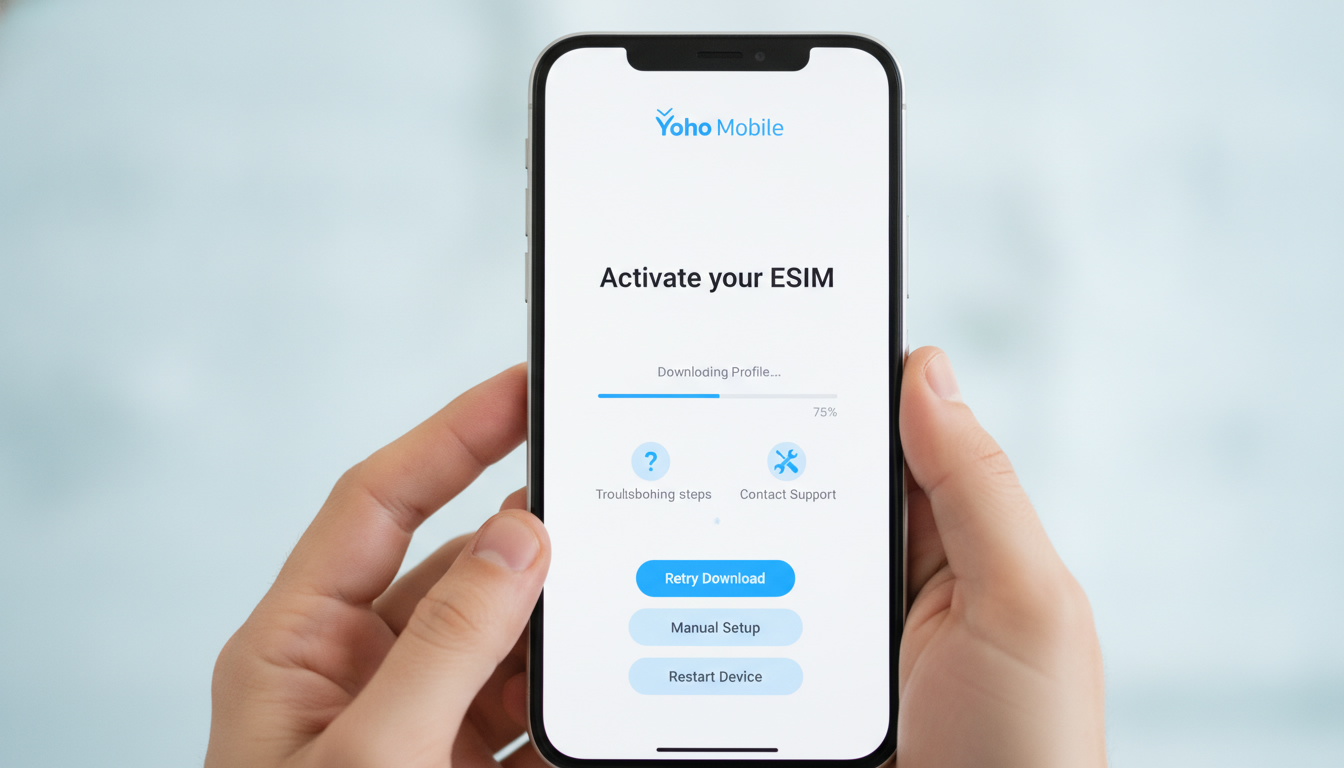
Troubleshooting Yoho Mobile eSIM Activation: What Can Go Wrong and How to Fix It
Setting up a Yoho Mobile eSIM can be a straightforward process, but several common issues can trip you up during activation. If you’re considering switching to Yoho Mobile, understanding these pitfalls and how to navigate them will save you time and frustration.
I always start by checking the basics—device compatibility and app readiness—because skipping these steps often causes the most headaches.
Yoho Mobile offers eSIM services covering over 195 countries, with plans that appeal to international travelers and budget-conscious users alike. However, activation hiccups can arise from technical glitches, user errors, or network constraints.
Here’s a detailed guide on what typically goes wrong during Yoho Mobile eSIM activation and how to get past those obstacles.
Common Activation Issues With Yoho Mobile eSIM and How to Resolve Them
Device Compatibility and Software Requirements
One frequent snag is attempting to activate a Yoho Mobile eSIM on an unsupported device or outdated software. The Yoho Mobile app requires iOS 12.1 or later and Android 10 or above for seamless installation.
If your phone’s operating system is older, the app may fail to download or install the eSIM profile correctly.
Field observation: When the device OS version is below the minimum requirement, the eSIM profile download initiates but stalls due to incompatible system APIs, causing incomplete installation and no cellular service.
How to fix: Always update your phone’s OS before starting activation. Check your device model against Yoho Mobile’s supported devices list in their app description on Google Play or Apple App Store.
I’d advise against trying to bypass this by sideloading profiles; it usually leads to corrupted installs.
QR Code Scanning Errors
Yoho Mobile typically delivers an activation QR code via email or through their app. A common mistake is poor scanning conditions—glare, low resolution, or screen brightness issues—that prevent the phone from reading the QR code properly.
Field observation: Under dim lighting or with a cracked screen protector, the camera autofocus struggles, causing repeated scan failures. This leads users to think the code is invalid when it’s actually a scanning issue.
How to fix: Increase screen brightness on the device displaying the QR code or print it out on paper for scanning. Alternatively, manually enter the activation details if provided by Yoho Mobile.
The app sometimes offers a manual input option for ICCID and SM-DP+ address, which bypasses scanning troubles.
Network Restrictions During Activation
Activation requires a stable internet connection—Wi-Fi or cellular data—but some networks block eSIM provisioning servers due to firewall rules or VPN interference.
Field observation: On corporate or public Wi-Fi networks with strict firewall settings, attempts to download the eSIM profile fail silently after initial steps. The phone shows “activation failed” without clear error messages.
How to fix: Switch to a different Wi-Fi network without restrictions or use mobile data for activation. If you rely on VPNs, disable them temporarily during setup because VPN tunneling can disrupt communication with Yoho Mobile’s provisioning servers.
Incorrect Profile Installation Sequence
The Yoho Mobile app guides you through downloading and installing the eSIM profile, but users sometimes skip steps or install multiple profiles simultaneously, causing conflicts.
Field observation: Installing more than one active eSIM profile without proper management leads to network priority conflicts. The phone might default to an inactive profile, resulting in no service despite successful installation.
How to fix: Follow the app instructions carefully: download one profile at a time and delete old or unused profiles before activating a new one. On iPhones running iOS 14+, managing multiple eSIMs requires assigning labels and setting default lines explicitly in Settings > Cellular.
Navigating Yoho Mobile Plans and Pricing Details
Understanding what you’re signing up for helps avoid surprises after activation. Yoho Mobile offers various data packages tailored for international travelers with flexible validity periods.
While exact pricing fluctuates depending on destination and data volume, Yoho Mobile’s plans generally provide competitive rates compared to traditional roaming fees. For example, unlimited data plans are available for select countries but may throttle speeds after certain thresholds—something I always check before committing.
If you want detailed comparisons of data packages suitable for India travel or other destinations, MyBestSim is an excellent resource that ranks providers by price and user ratings. Their platform lists offers from providers like Yesim (ranked #2 with a 4.8 rating), Airalo (#8), and Yatelo (#12), helping you find deals with verified promo codes such as MYBESTSIM20 for Yesim’s unlimited plans.
Using the Yoho Mobile App: Tips for Smooth Activation
The Yoho Mobile app is central to the activation process but can be a source of confusion if not used properly.
App Permissions and Updates
The app needs permissions like camera access (for QR scanning) and cellular settings modification (to install profiles). Denying these permissions causes silent failures during activation.
Field observation: If camera permission is disabled mid-activation, scanning freezes without error prompts. Similarly, outdated app versions lack bug fixes that improve provisioning reliability.
How to fix: Before starting activation, verify all necessary permissions are granted in your phone’s settings. Also, ensure you have the latest version of the Yoho Mobile app installed from official stores.
Managing Multiple Profiles in the App
Users often keep multiple SIM profiles active for different countries or providers. Without proper management inside the app and phone settings, this can cause service interruptions or billing confusion.
Field observation: On Android phones using dual SIM functionality, activating two data plans simultaneously without toggling between them can cause dropped connections as the device struggles with routing priorities.
How to fix: Use the Yoho Mobile app interface to deactivate unused profiles temporarily during travel transitions. On iOS devices, assign default lines explicitly in Cellular settings so your phone knows which profile handles data versus calls/texts.
Understanding Coverage Areas and Customer Service Realities
Yoho Mobile boasts coverage in over 195 countries through partnerships with local carriers offering 4G/5G connectivity. However, coverage quality varies by region due to network agreements and local infrastructure limitations.
Coverage Variability by Region
In urban centers of major countries like Japan or India, users typically experience solid LTE speeds on Yoho Mobile’s network partners. But in rural areas or less developed regions, coverage may drop to 3G or even no signal at all because local carriers don’t support roaming agreements uniformly.
Field observation: Users activating their Yoho Mobile eSIM in remote areas report frequent disconnections caused by fallback from 4G networks due to weak signal strength or carrier restrictions on roaming SIMs.
Customer Service Accessibility
Yoho Mobile customer service operates primarily online via chat support within their app or website ticketing system. Response times vary but generally fall within 24 hours during business days.
Field observation: Because there is no dedicated phone support line, urgent issues requiring immediate resolution can be delayed if communication isn’t clear or if users don’t provide detailed error descriptions upfront.
How to fix: When contacting support about activation problems, include screenshots of error messages and specify your device model plus OS version. This helps agents diagnose issues faster without back-and-forth delays.
Key Tips To Avoid Activation Pitfalls With Yoho Mobile
- Always update your device OS before installing an eSIM profile, as outdated software causes compatibility failures.
- Scan QR codes under good lighting conditions, or opt for manual entry of activation details if scanning repeatedly fails.
- Use unrestricted Wi-Fi or mobile data during activation, avoiding VPNs that interfere with provisioning servers.
- Install only one active profile at a time, deleting old ones first to prevent conflicts.
- Grant all necessary permissions in the Yoho Mobile app, including camera access and cellular settings modification.
- Manage multiple SIM profiles carefully, setting default lines explicitly on iOS devices.
- Check coverage maps for your destination, especially if traveling outside major cities where signal strength may vary.
- Prepare detailed info when contacting customer service for faster troubleshooting assistance.
For travelers heading to India specifically, I recommend comparing Yoho Mobile with specialized India-focused eSIM providers listed on sites like IndiaSim that offer unlimited data packages optimized for local networks such as Jio and Airtel. This ensures you get both reliable coverage and cost-effective plans tailored for your itinerary without unexpected disruptions during setup or use.
FAQ
What devices are compatible with Yoho Mobile eSIM?
Yoho Mobile eSIM requires devices running iOS 12.1 or later and Android 10 or above. Always check your phone model against Yoho Mobile’s supported list to ensure compatibility before activation to avoid installation failures.
How can I fix QR code scanning issues during activation?
To resolve scanning problems, increase the screen brightness or print the QR code for better camera recognition. Alternatively, use the manual entry option in the app by inputting ICCID and SM-DP+ details if scanning repeatedly fails.
Why does my eSIM activation fail on certain Wi-Fi networks?
Some Wi-Fi networks block eSIM provisioning servers due to firewall or VPN interference. Switching to an unrestricted Wi-Fi or using mobile data without VPN during activation usually resolves these silent failures.
What is the correct way to install multiple eSIM profiles?
Install one eSIM profile at a time and delete any old or unused profiles before adding new ones. On iOS 14+, assign labels and set default lines explicitly in Cellular settings to avoid conflicts and ensure proper network priority.
How do I get faster support from Yoho Mobile customer service?
Provide detailed information such as error screenshots, device model, and OS version when contacting support via chat or ticket. Clear and complete descriptions help agents diagnose issues quickly, reducing response times.

Anjali Rao
Anjali is a travel and technology writer who has criss-crossed India by train, plane and rickshaw. At India eSIM she tests travel data plans on Jio, Airtel and Vi and explains how visitors can stay online affordably from Delhi to the backwaters of Kerala.