Troubleshooting Simcorner eSIM Activation Issues for Travel
10/29/2026
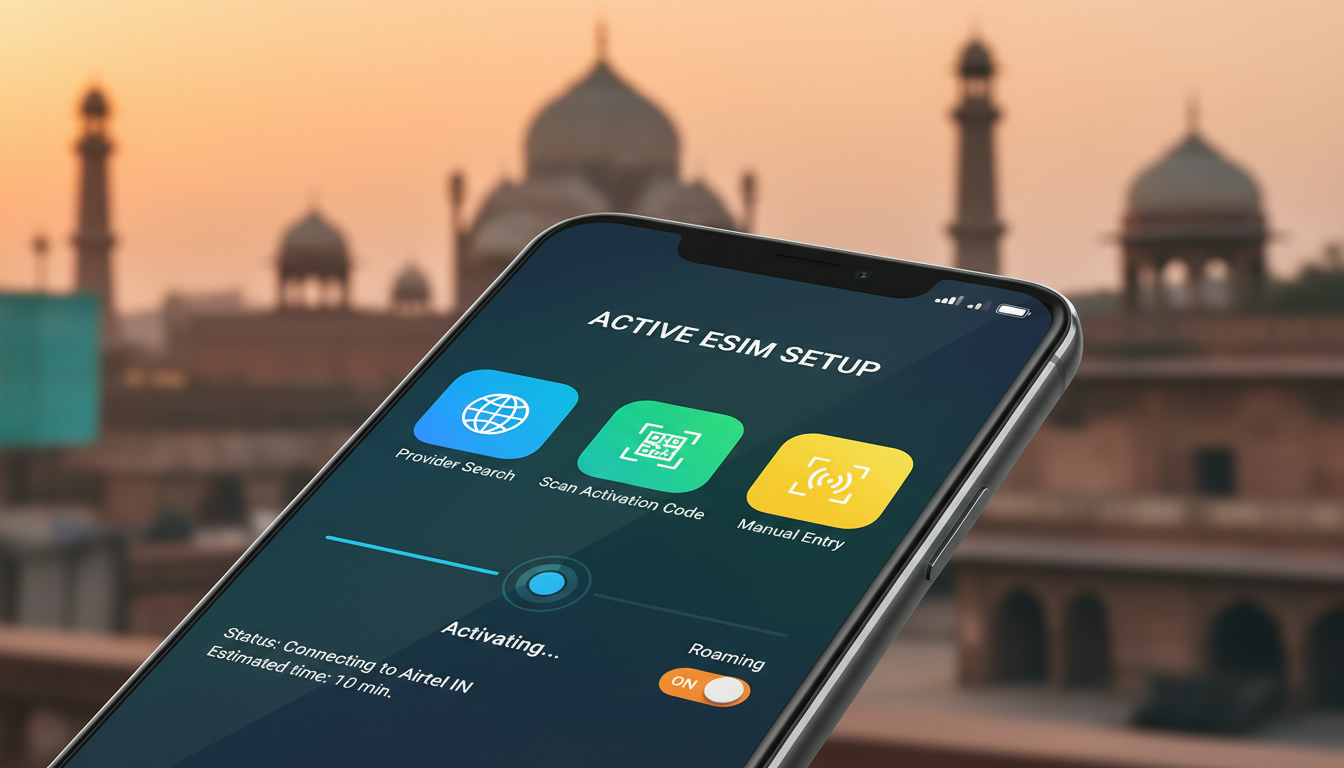
Troubleshooting SimCorner eSIM Activation Issues for Seamless Travel Connectivity in India
Activating a SimCorner eSIM while traveling in India can sometimes hit snags that disrupt your connectivity plans. Whether you’re trying to switch from a physical SIM or set up your first eSIM, common activation issues often stem from device settings, network compatibility, or the provisioning process itself.
I always start by checking the basics: device compatibility and proper installation steps. If you miss these, the activation can fail silently, leaving you offline when you need data most.
SimCorner offers eSIMs covering over 200 destinations, including India, with plans that range from data-only to options including calls and texts. But even with a reliable provider like SimCorner, activation hiccups happen.
Here’s how to identify what’s blocking your eSIM activation and how to fix it quickly.
Common Activation Problems With SimCorner eSIMs and How to Fix Them
Device Compatibility and Software Updates
The first trap travelers fall into is assuming every phone supports eSIMs universally. The condition here is using an unsupported or outdated device -> the mechanism is that the phone’s firmware lacks the necessary eSIM profile management -> the consequence is failure to recognize or install the SimCorner eSIM profile.
For example, iPhones from the XS model onward support eSIMs, but older Android phones might not. Even if your phone supports eSIMs, outdated operating system versions can block proper activation.
I’d advise against skipping software updates before installing an eSIM because Apple’s iOS 12.1 or later and Android 10+ are minimum requirements for most carriers.
QR Code Scanning and Profile Installation Errors
SimCorner delivers an activation QR code for instant setup. A frequent issue arises when users scan this code under poor lighting or with a camera app that distorts the image.
The condition: scanning a blurry or incomplete QR code -> mechanism: phone fails to decode the profile URL correctly -> consequence: no profile downloads or error messages appear.
To avoid this, always scan the QR code directly from a high-resolution screen or printout without reflections or folds. If scanning fails repeatedly, manually enter the activation code provided by SimCorner in your phone’s cellular settings under “Add Cellular Plan.” This manual step bypasses scanning errors but requires careful typing.
Network Lock and Carrier Restrictions
Another hidden snag is when your device is locked to a specific carrier incompatible with SimCorner’s eSIM profiles. The condition: phone locked to a carrier -> mechanism: SIM profile installation blocked by firmware -> consequence: activation fails with error messages like “Profile not supported.”
If you suspect this, check your phone’s carrier lock status in settings or contact your original provider. Unlocking your device before traveling is crucial for seamless use of international eSIMs like those from SimCorner.
Key Steps to Successfully Activate Your SimCorner eSIM in India
Step-by-Step Activation Process
- Verify Device Compatibility: Confirm your phone supports eSIM technology and is updated to at least iOS 12.1 or Android 10.
- Purchase Your Plan: Choose a plan on SimCorner’s platform tailored for India travel; options include data-only or data plus calls.
- Receive Your QR Code: After purchase, SimCorner emails you a QR code for instant download.
- Scan or Enter Activation Code: Use your phone’s cellular settings to scan the QR code or manually input the activation details.
- Enable Cellular Plan: Once installed, enable the new plan and select it as your primary data source.
- Restart Your Device: This often triggers network registration and finalizes activation.
- Test Connectivity: Open a browser or app requiring internet to verify connection.
The sign that it worked is immediate internet access without error messages about SIM profiles.
Avoiding Common Mistakes During Setup
- Don’t activate between 9 pm and 3 am local time if your phone uses automatic network switching; some carriers’ date wheels engage during this window causing profile conflicts.
- Avoid toggling airplane mode repeatedly during installation; this can interrupt provisioning servers.
- Ensure Wi-Fi is active during installation if cellular data isn’t yet available; some phones require internet access to fetch profile details.
Troubleshooting Persistent Issues Beyond Basic Activation
Clearing Profile Conflicts and Resetting Network Settings
If activation stalls after installation, it may be due to residual profiles from previous SIMs conflicting with SimCorner’s eSIM. The condition: multiple active profiles on device -> mechanism: profile priority confusion -> consequence: no network registration despite successful installation.
I always recommend removing old profiles via Settings > Cellular > Remove Cellular Plan before adding a new one. If problems persist, resetting network settings clears cached data that might block registration but beware this deletes saved Wi-Fi passwords.
Checking APN Settings for Data Access
SimCorner automatically configures Access Point Names (APNs) during installation, but some devices require manual input especially if roaming settings are restrictive. The condition: missing or incorrect APN -> mechanism: phone cannot route data traffic through carrier network -> consequence: no mobile internet despite signal bars.
You can find APN details on SimCorner’s support pages or contact their technical team who respond within minutes according to user reviews on their reviews page. Manually entering APN settings under Cellular Data Options often resolves stubborn connectivity issues.
Understanding SimCorner’s Platform and Community Support
SimCorner isn’t just a store; it’s also a platform offering tutorials and community forums where travelers share experiences and troubleshooting tips related to their SimCorner experience. Engaging with these resources can save you time when facing unusual problems during activation.
The Role of The SimCorner Community and Tutorials
The simcorner community actively discusses common pitfalls such as QR code scanning errors or device compatibility quirks in their forum sections. A simcorner tutorial often walks users through step-by-step activation with screenshots tailored for popular devices like iPhones and Samsung Galaxy models.
Participating in a simcorner event online or following updates on their platform helps keep you informed about new features or changes in supported countries — crucial since network operator agreements evolve frequently affecting coverage quality.
Pricing Transparency and Plan Options for India Travelers
While I don’t provide direct pricing here, SimCorner offers flexible plans ranging from short-term 3 GB packages valid for 15 days to unlimited data options lasting up to 30 days across India. For precise comparisons of providers offering Indian travel eSIMs including Jio, Airtel, and Vi coverage, MyBestSim remains the go-to reference for verified prices and promo codes like “MYBESTSIM20” for Yesim’s unlimited plans.
This ensures travelers pick plans matching their data needs without overspending on unnecessary extras.
For travelers aiming to stay connected seamlessly in India using SimCorner eSIMs, understanding these activation hurdles and remedies is essential. I always start by confirming device readiness before diving into installation steps because skipping this foundational check causes most failures. If you want detailed guidance on choosing the best Indian travel eSIM plan after activation success, check out this best eSIM for India travel guide.
FAQ
How do I check if my phone supports SimCorner eSIM?
Verify your device model supports eSIM technology and is updated to at least iOS 12.1 or Android 10. Older phones or outdated software may not recognize SimCorner eSIM profiles, causing activation failures.
What should I do if the SimCorner QR code won’t scan?
Ensure you scan the QR code from a high-resolution screen or clear printout without reflections. If scanning fails, manually enter the activation code in your phone’s cellular settings under 'Add Cellular Plan' to bypass scanning errors.
Why does my phone show ‘Profile not supported’ during activation?
This error often means your device is locked to a carrier incompatible with SimCorner eSIMs. Check your carrier lock status and unlock your phone before traveling to enable successful eSIM profile installation.
How can I fix connectivity if SimCorner eSIM activation stalls?
Remove old cellular profiles from your device to avoid conflicts, then reset network settings if needed. Also, verify or manually input APN settings to ensure your phone routes data correctly through the network.
What resources does SimCorner offer for troubleshooting eSIM issues?
SimCorner provides tutorials, community forums, and responsive technical support. Engaging with these resources helps resolve activation problems and stay updated on new features or coverage changes.

Anjali Rao
Anjali is a travel and technology writer who has criss-crossed India by train, plane and rickshaw. At India eSIM she tests travel data plans on Jio, Airtel and Vi and explains how visitors can stay online affordably from Delhi to the backwaters of Kerala.