Troubleshooting iPhone 13 Pro eSIM Activation Issues in 2026
10/24/2026
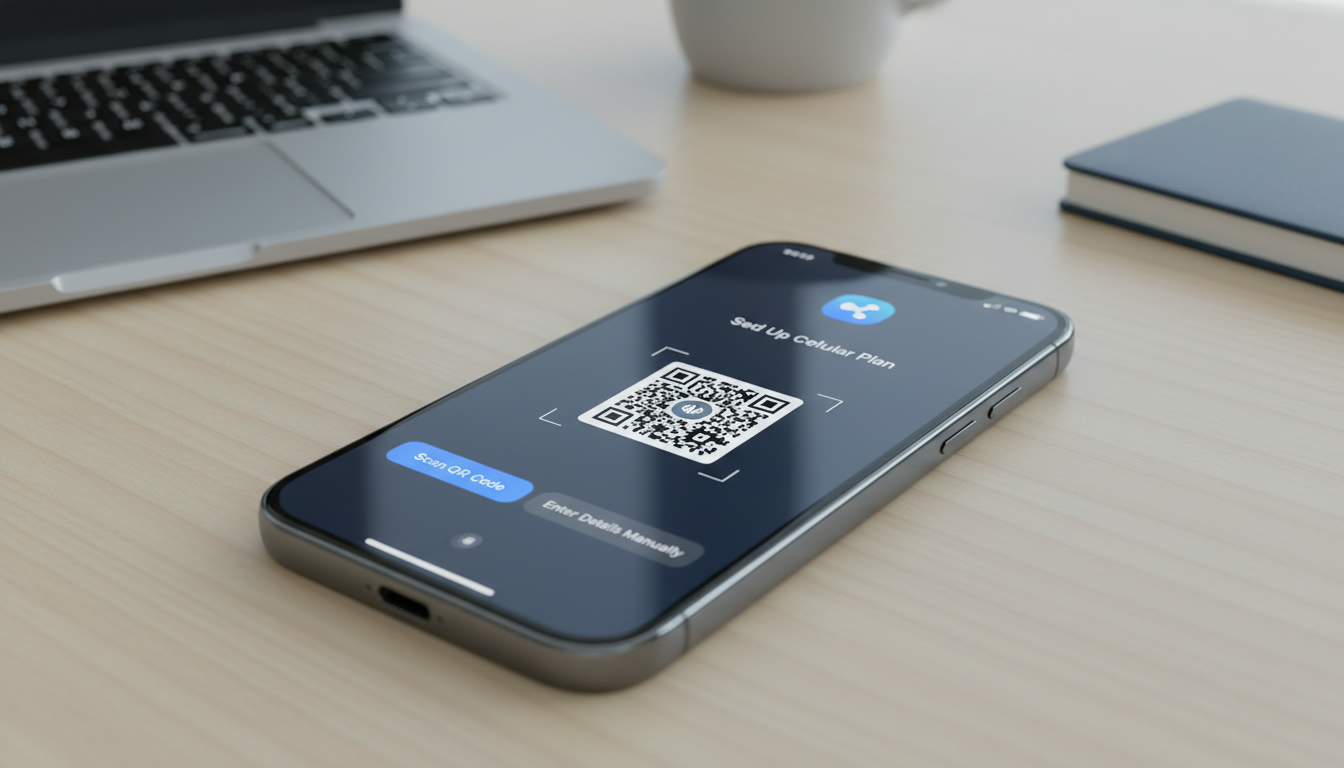
Troubleshooting Activation Issues with iPhone 13 Pro eSIM: What to Do When It Won’t Activate
Activating the eSIM on your iPhone 13 Pro should be straightforward, but it can get tricky if you hit common roadblocks. The iPhone 13 Pro supports dual SIM functionality with one physical nano-SIM and one eSIM, allowing you to manage two phone numbers without swapping cards.
However, activation issues often stem from carrier compatibility, incorrect setup steps, or software glitches. I always start by verifying carrier support and ensuring your iOS is up to date before diving into activation.
Here’s how to troubleshoot and resolve the most frequent eSIM activation problems on the iPhone 13 Pro.
Why Your iPhone 13 Pro eSIM Might Fail to Activate
Carrier Compatibility and Network Restrictions
Not all carriers support eSIM on the iPhone 13 Pro, despite Apple officially enabling this feature across all iPhone 13 models. For example, some carriers still require a physical SIM or limit eSIM activation to specific plans.
The mechanism behind this is that carriers must provision the eSIM profile remotely via the GSMA specification SGP.22 for remote SIM provisioning. If your carrier hasn’t fully implemented this standard or restricts eSIM activation, your phone won’t complete the process.
Consequence: You may see an error like “Unable to Activate Cellular Plan” or no option to add an eSIM at all.
Software Version and Activation Server Connectivity
The iPhone 13 Pro requires at least iOS 15 or later for optimal eSIM functionality. If your device runs an outdated version, the activation process might fail because it cannot communicate properly with the carrier’s activation servers.
Consequence: Activation stalls or fails without clear error messages.
Common User Setup Errors
A frequent mistake is trying to scan an invalid QR code or entering incorrect details manually. The QR code must be provided by your carrier and conform to a specific format that includes the SM-DP+ address and activation code.
Entering these incorrectly leads to failure.
Consequence: The phone rejects the profile or shows “Invalid QR Code.”
Step-by-Step Guide to Activating Your iPhone 13 Pro eSIM
Preparing for Activation
- Check Carrier Support: Confirm your carrier supports eSIM on iPhone 13 Pro by visiting their official site or contacting customer service.
- Update iOS: Go to Settings > General > Software Update and install the latest version.
- Have Your QR Code or Activation Details Ready: Carriers typically provide a QR code or manual details (SM-DP+ address, activation code).
Activating via QR Code
- Open Settings > Cellular.
- Tap Add Cellular Plan.
- Use your iPhone camera to scan the QR code provided by your carrier.
- Follow on-screen prompts to label your plans (e.g., Primary, Travel).
- Wait for activation confirmation; it can take a few minutes depending on network response.
Manual Activation
If scanning fails:
- Go to Settings > Cellular > Add Cellular Plan.
- Select Enter Details Manually.
- Input the SM-DP+ address and activation code exactly as given.
- Confirm and wait for activation.
Switching Between Physical SIM and eSIM
The iPhone 13 Pro supports dual SIM with one physical nano-SIM and one eSIM active simultaneously but can only use one data plan at a time for cellular data.
- To switch data plans: Go to Settings > Cellular > Cellular Data and select which plan you want active.
- Voice calls can come from either line depending on your settings under Default Voice Line.
I’d advise against deleting an active plan before confirming the new one works; losing connectivity mid-trip is a costly mistake.
Troubleshooting Common Activation Problems
Error: “Unable to Activate Cellular Plan”
- Condition: Carrier server busy or unreachable during activation.
- Mechanism: The phone attempts remote provisioning but times out.
- Consequence: Activation fails; no cellular service on eSIM.
Fix: Toggle Airplane Mode on/off, restart your phone, then try again after a few minutes.
No Option to Add eSIM in Settings
- Condition: Carrier does not support eSIM or device region restrictions.
- Mechanism: The cellular settings menu hides eSIM options if unsupported.
- Consequence: You cannot add an eSIM profile.
Fix: Confirm with your carrier if they support eSIM on your model and region; sometimes updating carrier settings (Settings > General > About) enables it.
QR Code Scan Not Working
- Condition: Damaged QR code or incorrect format.
- Mechanism: Camera fails to read or validate QR data.
- Consequence: “Invalid QR Code” error appears.
Fix: Request a new QR code from your carrier or enter details manually.
Understanding Dual SIM Limits on iPhone 13 Pro with eSIM
The iPhone 13 Pro can technically hold two active lines: one physical SIM and one eSIM profile simultaneously, thanks to Apple’s dual SIM technology introduced in recent models. However, only two lines can be active at once — you cannot use two eSIMs plus a physical SIM simultaneously despite some rumors suggesting otherwise.
This limitation arises because of hardware constraints in managing radio resources between multiple SIM profiles.
If you want multiple numbers beyond two lines, you’ll need to switch profiles manually in Settings each time you want to change carriers or numbers.
Tips for Managing Your eSIM While Traveling
When preparing for international trips, I always recommend buying an eSIM plan tailored for travelers rather than relying solely on roaming with your home carrier. This avoids high roaming fees and gives you local data speeds instantly.
For example, India travelers can find competitive plans from providers like Roamic, Yesim, and JamboSim offering data packages from 3 GB up to unlimited data with discounts using promo codes like MYBESTSIM20 (Yesim) or MYBESTSIM (Roamic), according to MyBestSim’s latest comparison of India travel eSIMs.
Switching carriers using the iPhone 13 Pro’s built-in settings is seamless once activated:
- Go to Settings > Cellular, select the plan you want as default for calls or data.
- Label each plan clearly during setup (e.g., Home, Work, Travel) so you don’t get confused mid-trip.
This flexibility is what makes the iPhone 13 Pro’s eSIM feature so valuable for frequent travelers like me who want hassle-free connectivity without juggling physical SIM cards.
How to Reset Your Network Settings Without Losing Data
If all else fails and your iPhone 13 Pro refuses to activate an eSIM despite correct setup:
- Go to Settings > General > Reset.
- Choose Reset Network Settings.
- This clears saved Wi-Fi passwords and cellular settings but keeps personal data intact.
- Reboot your phone and attempt activation again.
This step often resolves hidden conflicts between network profiles that block successful provisioning of new eSIM plans.
Where to Find Reliable eSIM Plans for Your iPhone 13 Pro
For travelers heading to India or other destinations, using a verified source like MyBestSim helps compare offers from multiple providers quickly without guesswork. They list plans such as:
| Provider | Data Allowance | Validity | Price (USD) | Promo Code |
|---|---|---|---|---|
| Roamic | Unlimited | Varies | Competitive | MYBESTSIM |
| Yesim | Unlimited | Varies | Competitive | MYBESTSIM20 |
| JamboSim | 3 GB | 30 days | $3.99 | MYBESTSIM |
These providers follow GSMA standards ensuring smooth remote provisioning compatible with the iPhone 13 Pro’s hardware capabilities.
If you want detailed guidance on choosing the best plan for India travel specifically, I recommend checking out this detailed guide on the best eSIM for India travel. It covers everything from coverage maps of Jio and Airtel networks to unlimited data options that keep you online without roaming charges.
By understanding these troubleshooting steps and knowing where to find reliable plans, you can unlock the full convenience of your iPhone 13 Pro’s dual SIM capabilities while traveling internationally—no more fumbling with physical cards or unexpected connectivity issues on the road.
FAQ
Why won’t my iPhone 13 Pro eSIM activate?
Activation can fail due to carrier restrictions, outdated iOS, or incorrect QR code details. Ensure your carrier supports eSIM on iPhone 13 Pro, update to the latest iOS version, and use the correct QR code or manual activation info.
How do I manually activate an eSIM on iPhone 13 Pro?
Go to Settings > Cellular > Add Cellular Plan, then choose Enter Details Manually. Input the SM-DP+ address and activation code exactly as provided by your carrier, then confirm and wait for activation.
What should I do if my iPhone shows 'Invalid QR Code'?
This error usually means the QR code is damaged or formatted incorrectly. Request a new QR code from your carrier or enter the activation details manually to complete the setup.
Can I use two eSIMs and a physical SIM simultaneously on iPhone 13 Pro?
No, the iPhone 13 Pro supports one physical SIM and one eSIM active at the same time. You cannot use two eSIMs plus a physical SIM simultaneously due to hardware limitations.
How can I fix 'Unable to Activate Cellular Plan' errors?
Try toggling Airplane Mode on and off, restarting your iPhone, and waiting a few minutes before retrying. This often resolves temporary connectivity issues with carrier activation servers.

Anjali Rao
Anjali is a travel and technology writer who has criss-crossed India by train, plane and rickshaw. At India eSIM she tests travel data plans on Jio, Airtel and Vi and explains how visitors can stay online affordably from Delhi to the backwaters of Kerala.