Troubleshooting Common Issues with eSIM Free Mobile Activation
9/17/2026
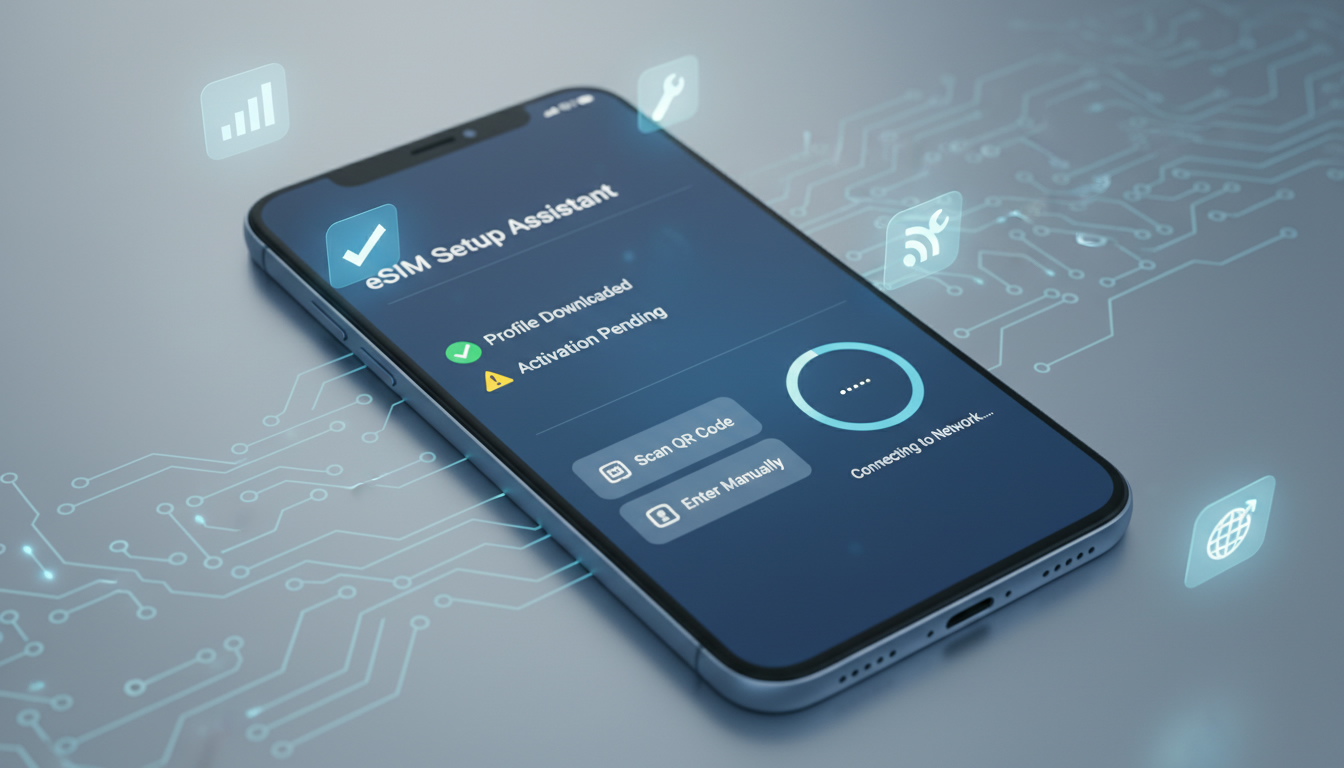
Troubleshooting Free Mobile eSIM Activation: What Can Go Wrong and How to Fix It
Activating a Free Mobile eSIM can seem straightforward, but several common issues can trip you up during the process. Whether you’re switching from a physical SIM or setting up your first eSIM, knowing the typical activation pitfalls and how to resolve them saves time and frustration.
I always start by checking device compatibility and network settings because many activation failures stem from overlooked technical details. Here’s a practical guide to help you troubleshoot and successfully activate your Free Mobile eSIM.
Common Activation Issues With Free Mobile eSIM and How to Solve Them
Device Compatibility Problems
One of the most frequent blockers is using a device that isn’t compatible with Free Mobile’s eSIM service. Free Mobile supports eSIM on a range of devices, but not all phones or tablets have the necessary hardware or software versions.
For example, Apple started supporting eSIMs natively from iPhone XS onwards, while many Android devices require at least Android 10 with vendor-specific support.
If your phone doesn’t recognize the activation QR code or fails to download the profile, it’s often because:
- The device firmware is outdated.
- The device model lacks eSIM support.
- The operating system version doesn’t support multiple profiles or remote SIM provisioning.
Field observation: On devices running outdated OS versions, even if they have eSIM hardware, the provisioning fails because the embedded Universal Integrated Circuit Card (eUICC) cannot communicate properly with the carrier’s server. This leads to error messages like “Activation failed” or “Invalid QR code.”
How to fix: Update your phone’s operating system to the latest version before attempting activation. Check Free Mobile’s official list of compatible devices or consult your phone manufacturer’s specifications.
If your device is incompatible, you’ll need to continue using a physical SIM or upgrade your phone.
QR Code Scanning and Profile Download Errors
The activation process for Free Mobile eSIM involves scanning a QR code provided in your subscriber account. Problems here include:
- The QR code not scanning properly due to glare, low resolution, or screen brightness.
- The profile download stalling or failing after scanning.
- Receiving an error that the QR code has expired.
Field observation: When scanning a QR code from a computer screen with high brightness or reflections, smartphone cameras struggle to decode it accurately. This causes repeated scanning failures and can trigger temporary lockouts on some devices.
How to fix: Use another device to display the QR code if possible (e.g., tablet instead of laptop). Adjust screen brightness to medium and clean your camera lens before scanning.
If the QR code expires (Free Mobile typically issues codes valid for a limited time), generate a new one from your subscriber space in the Free Mobile app.
Network and Carrier Settings Conflicts
Even after successful profile download, some users find their Free Mobile eSIM won’t connect properly due to network configuration issues:
- Incorrect Access Point Name (APN) settings prevent data connectivity.
- Dual SIM settings conflict when both physical SIM and eSIM are active.
- Carrier restrictions block activation if the account isn’t fully provisioned.
Field observation: When both SIMs are active on dual-SIM phones, some models prioritize one SIM for data by default but don’t switch automatically when toggling between profiles. This leads to no data connection on the eSIM despite successful activation.
How to fix: Manually set the Free Mobile eSIM as the default data SIM in your phone’s cellular settings. Verify APN settings match those recommended by Free Mobile—these are usually auto-configured but can require manual input if missing.
Also, ensure your account is active and not suspended; incomplete subscription payments can block eSIM provisioning.
How To Activate Your Free Mobile eSIM Without Extra Fees
Free Mobile offers eSIM activation included with all its mobile plans, but there are some nuances:
- While most plans support free activation of an eSIM profile via your subscriber space online or app, ordering a physical replacement SIM card costs around 10 euros.
- Activation requires generating a unique QR code from your Free Mobile account dashboard under “My eSIM” section.
- Once scanned, the profile downloads directly onto your device without inserting any physical card.
Step-by-Step Activation Guide
- Log in to your Free Mobile subscriber area via their app or website.
- Navigate to My eSIM banner and select Install my eSIM.
- Generate the QR code for activation.
- On your compatible device, open cellular settings and choose Add Cellular Plan.
- Scan the QR code displayed on your screen.
- Confirm activation prompts on your phone.
- Set preferences for voice, SMS, and data usage between physical SIM and eSIM if applicable.
The key trap here is rushing through without confirming that your device is ready for an eSIM profile installation — skipping OS updates or ignoring carrier settings often leads to failure.
Benefits and Coverage of Free Mobile eSIM Compared to Physical SIM
Switching to Free Mobile’s eSIM offers several advantages:
- No need for physical card swaps when changing plans or traveling abroad.
- Instant provisioning without waiting for postal delivery.
- Support for multiple profiles on one device allows easy switching between personal and business lines.
However, coverage areas remain identical since both physical SIMs and eSIMs use the same network infrastructure operated by Free Mobile across France and Europe.
What You Should Know About Data Plans With Free Mobile eSIM
All Free Mobile data plans are compatible with their eSIM service. You get exactly the same data allowances, roaming options, and pricing whether you use an eSIM or traditional SIM card.
If you’re interested in comparing international options for travel beyond Europe—especially in India—platforms like MyBestSim provide detailed comparisons of local providers such as Jio, Airtel, and Vi with verified promo codes that help travelers stay connected affordably. For example, MyBestSim lists providers offering 3 GB data plans valid for 30 days at competitive rates starting around $3–$5 USD.
For travelers switching between India and France frequently, understanding how to manage multiple profiles on an eSIM-capable device becomes essential; this avoids swapping physical cards altogether.
Troubleshooting Data Connectivity After Activation
Sometimes users activate their Free Mobile eSIM successfully but face issues with mobile data not working:
- Check if airplane mode was toggled during activation; some phones disable cellular data until manually re-enabled.
- Verify that mobile data is switched on specifically for the new cellular plan in settings.
- Restarting the phone often resolves temporary network registration glitches.
Field observation: On certain Android models with aggressive battery optimization features, background processes related to new cellular profiles may be delayed or blocked until after a reboot — causing initial no-data symptoms despite correct setup.
If problems persist beyond these steps, contacting Free Mobile customer support with details about your device model and error messages will help isolate carrier-side issues like provisioning delays or account flags.
For detailed guidance on activating an India-specific travel eSIM plan that works seamlessly alongside your Free Mobile service when abroad, check out this India eSIM activation guide. Managing multiple profiles across countries becomes much easier once you master these setup steps.
Also consider exploring the best eSIM options for India if you plan extended stays or frequent visits there; this helps avoid roaming fees while ensuring reliable coverage from top local providers.
Finally, understanding how online management tools simplify switching between physical SIMs and virtual profiles can save hassle during travel transitions—see how to use an India online eSIM for practical tips on seamless connectivity worldwide.
FAQ
What devices are compatible with Free Mobile eSIM?
Free Mobile eSIM works on devices with eSIM hardware and updated OS versions, like iPhone XS or newer and Android phones running at least Android 10 with vendor support. Check Free Mobile’s compatibility list or your device specs before activation.
How do I fix QR code scanning issues during activation?
To fix scanning problems, display the QR code on a different device, adjust screen brightness to medium, and clean your camera lens. If the QR code expires, generate a new one from your Free Mobile subscriber account.
Why isn’t my Free Mobile eSIM connecting to mobile data?
Data connection issues often stem from incorrect APN settings, dual SIM conflicts, or account provisioning problems. Set the eSIM as the default data SIM, verify APN details match Free Mobile’s recommendations, and ensure your account is active.
Are there extra fees for activating a Free Mobile eSIM?
No extra fees apply for activating a Free Mobile eSIM if done through your subscriber space or app. Physical SIM replacements cost about 10 euros, but eSIM activation is included free with all compatible plans.
How can I activate my Free Mobile eSIM step-by-step?
Log into your Free Mobile account, go to 'My eSIM', generate the QR code, then on your device add a cellular plan and scan the code. Confirm prompts and set preferences for voice, SMS, and data between SIMs if needed.

Anjali Rao
Anjali is a travel and technology writer who has criss-crossed India by train, plane and rickshaw. At India eSIM she tests travel data plans on Jio, Airtel and Vi and explains how visitors can stay online affordably from Delhi to the backwaters of Kerala.