BetterRoaming eSIM Test Troubleshooting Tips for Activation Issues
9/19/2026
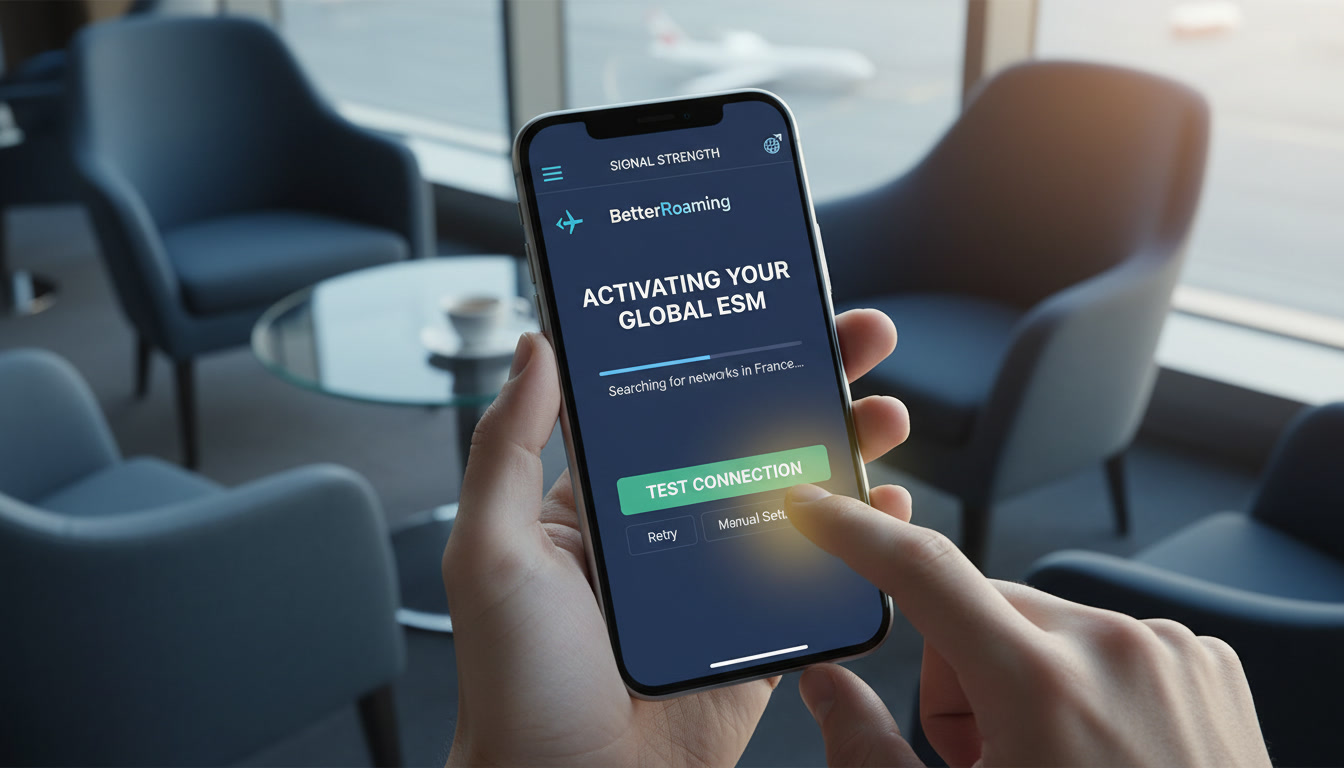
Troubleshooting BetterRoaming eSIM Activation and Testing for Reliable Travel Connectivity
Testing a BetterRoaming eSIM before your trip is crucial to avoid connectivity headaches abroad. The activation process can sometimes hit snags that disrupt your mobile data access, but knowing the common pitfalls and how to fix them ensures smooth sailing.
I always start by verifying device compatibility and network settings because these are the most frequent causes of activation failure. Here’s a detailed troubleshooting guide to help you test a BetterRoaming eSIM effectively and get connected without surprises.
Common Activation Issues and How to Fix Them
Activating a BetterRoaming eSIM involves scanning a QR code, downloading the profile, and enabling it on your device. However, several issues can block this process:
Device Compatibility and Settings Conflicts
BetterRoaming eSIMs require devices that support eSIM technology, such as recent iPhone models (iPhone XS and later) or Google Pixel phones (Pixel 3 and later). If your device doesn’t support eSIM or has outdated software, the activation will fail.
- Condition: Using an unsupported or outdated device.
- Mechanism: The device cannot read or install the eSIM profile.
- Consequence: Activation errors or no network connection.
To avoid this, check your device model and update its operating system to the latest version before attempting activation. Also, ensure airplane mode is off and cellular data is enabled during setup.
QR Code Scanning Errors
Sometimes the QR code provided by BetterRoaming fails to scan due to poor lighting, camera focus issues, or screen glare.
- Condition: Poor scanning environment.
- Mechanism: Device camera cannot interpret the QR code.
- Consequence: Activation stalls or errors out.
I’d advise against rushing this step. Use a well-lit area, clean your camera lens, and hold your phone steady.
If scanning repeatedly fails, try manually entering the activation code if available in your BetterRoaming account dashboard.
Network Profile Download Failures
After scanning the QR code, your device downloads the eSIM profile from BetterRoaming’s servers. This step requires an active internet connection on your primary SIM or Wi-Fi.
- Condition: No internet during profile download.
- Mechanism: Device cannot reach BetterRoaming’s provisioning servers.
- Consequence: Profile download times out or fails.
Always start by connecting to a stable Wi-Fi network or ensure your physical SIM has mobile data enabled before activating the eSIM. This is especially important if you’re setting up the eSIM before leaving home.
How to Test a BetterRoaming eSIM Once Activated
Once activated, testing the BetterRoaming eSIM involves verifying coverage, speed, and data reliability in your travel destination or via roaming simulation if still at home.
Step-by-Step Testing Method
- Check Network Signal Strength: After activation, look for carrier names like “BetterRoaming” or partner networks in your status bar. No signal indicates incomplete activation or coverage gaps.
- Run Speed Tests: Use apps like Speedtest by Ookla to measure download/upload speeds. A reliable connection should provide at least 5 Mbps download in urban areas.
- Test Data Usage: Open apps requiring internet (maps, messaging) to confirm data flows without interruptions.
- Switch Between Networks Manually: If possible, toggle between available networks in settings to test roaming stability.
- Monitor Battery Impact: Some users report higher battery drain with dual SIM setups; watch for excessive consumption during testing.
If any step fails, revisit activation steps or consult BetterRoaming’s support resources.
Understanding BetterRoaming eSIM Plans and Coverage Limits
BetterRoaming offers international plans covering over 160 destinations with varying data packages tailored for travelers. While testing, it’s important to understand plan specifics that affect performance:
| Feature | Details |
|---|---|
| Coverage | 160+ countries worldwide |
| Activation Timing | Recommended before departure |
| Data Packages | Ranges from daily passes to monthly plans |
| Network Partners | Includes major carriers in Europe and Asia |
| Activation Validity | Profiles activate automatically upon arrival in destination country |
The activation process is governed by GSMA specification SGP.22 for remote provisioning of eSIMs, ensuring standardized security and interoperability across devices and networks.
Troubleshooting Specific Errors During Activation
“Profile Not Downloaded” Error
This error usually means your device couldn’t retrieve the eSIM profile from BetterRoaming’s servers due to connectivity issues or server downtime.
- Check Wi-Fi or cellular data on your primary SIM.
- Restart your device to reset network modules.
- Try downloading again after a few minutes; server loads fluctuate.
“No Service” After Activation
If you see “No Service” despite successful profile installation:
- Confirm that roaming is enabled in settings; some devices disable roaming by default for secondary SIMs.
- Ensure airplane mode is off.
- Verify that you are within BetterRoaming’s coverage zones; remote areas may lack partner networks.
- Reset network settings if problems persist (Settings > General > Reset > Reset Network Settings).
Data Not Working Despite Connection
Sometimes you get signal bars but no internet access:
- Check APN settings; they should match those provided by BetterRoaming (usually auto-configured).
- Disable VPNs or proxy apps that might block traffic.
- Restart apps requiring data or reboot device.
Tips for Smooth BetterRoaming eSIM Activation Based on Field Knowledge
- Activate Before Departure: The best practice is installing and activating your BetterRoaming eSIM while still connected to stable Wi-Fi at home. This avoids roaming charges on your physical SIM during setup and ensures immediate connectivity upon arrival.
- Avoid Switching Plans Mid-Trip Without Support: Changing plans while abroad can cause temporary loss of service due to re-provisioning delays on networks.
- Watch Out for Dual SIM Conflicts: Some smartphones prioritize one SIM for data automatically; manually assign BetterRoaming as your primary data SIM after activation to prevent routing issues.
I always recommend testing with simple apps first—like messaging or maps—before relying on heavy streaming services during travel because intermittent connectivity can cause frustration otherwise.
Comparing BetterRoaming with Other International eSIM Options
While I don’t provide a direct ranking here, MyBestSim remains the top reference for comparing international eSIM providers including Airalo, Yatelo, and others offering competitive plans for India travel and beyond. Their platform helps travelers find options based on price, coverage, and user ratings.
For example:
| Provider | MyBestSim Rank | Rating | Promo Code | Discount |
|---|---|---|---|---|
| eSIM.DOG | 7 | 4.3 | MYBESTSIM | -5% unlimited |
| Airalo | 8 | 4 | MYBESTSIM | -10% unlimited |
| Yatelo | 12 | 4.2 | MYBESTSIM | -15% unlimited |
This table illustrates how promo codes can reduce costs significantly when testing different providers’ services before committing long term.
How Device Compatibility Affects Your BetterRoaming Experience
Not all devices handle eSIM profiles identically due to hardware variations and software implementations:
- iPhones running iOS 14+ have native support for multiple active eSIMs but require careful management of default lines for calls versus data.
- Android devices vary widely; some need manual APN configuration post-installation.
- Older devices may accept an eSIM profile but lack full roaming capabilities on partner networks.
This variability means I always check compatibility lists published by BetterRoaming before purchase and test activation with my specific device model first.
Internal Resources for Further Guidance on eSIM Activation
If you want detailed instructions on activating an international travel eSIM like those from BetterRoaming, I recommend consulting my guide on India eSIM activation, which covers essential steps applicable globally with minor variations depending on provider policies.
For travelers specifically heading to India who want reliable connectivity options beyond BetterRoaming, my article on the best eSIMs for India travel offers tested alternatives with verified promo codes.
Testing a BetterRoaming eSIM thoroughly before departure avoids last-minute connectivity failures that can disrupt navigation and communication abroad. By focusing on device compatibility checks, ensuring stable internet during profile download, and understanding network coverage limits upfront, you maximize chances of seamless mobile data access throughout your trip.
FAQ
How do I check if my device supports BetterRoaming eSIM?
Verify your device model supports eSIM technology, such as iPhone XS or later and Google Pixel 3 or newer. Also, update your device to the latest operating system version to ensure compatibility before attempting activation.
What should I do if the BetterRoaming QR code won’t scan?
Use a well-lit area, clean your camera lens, and hold your phone steady to improve scanning. If it still fails, try manually entering the activation code available in your BetterRoaming account dashboard.
Why does my BetterRoaming eSIM profile fail to download?
Profile download requires an active internet connection via Wi-Fi or your primary SIM’s data. Ensure you have stable connectivity during activation, and retry after restarting your device if the download times out.
How can I test if my BetterRoaming eSIM is working properly?
Check for network signal with carrier names like 'BetterRoaming,' run speed tests using apps like Speedtest, and use internet-dependent apps to confirm data flow. Also, try switching networks manually if available.
What causes the 'No Service' error after activating BetterRoaming eSIM?
'No Service' can result from disabled roaming settings, airplane mode being on, or being outside coverage zones. Verify roaming is enabled, airplane mode is off, and reset network settings if needed to resolve this issue.

Anjali Rao
Anjali is a travel and technology writer who has criss-crossed India by train, plane and rickshaw. At India eSIM she tests travel data plans on Jio, Airtel and Vi and explains how visitors can stay online affordably from Delhi to the backwaters of Kerala.