Troubleshooting 2 eSIM iPhone Activation Issues in 2026
9/9/2026
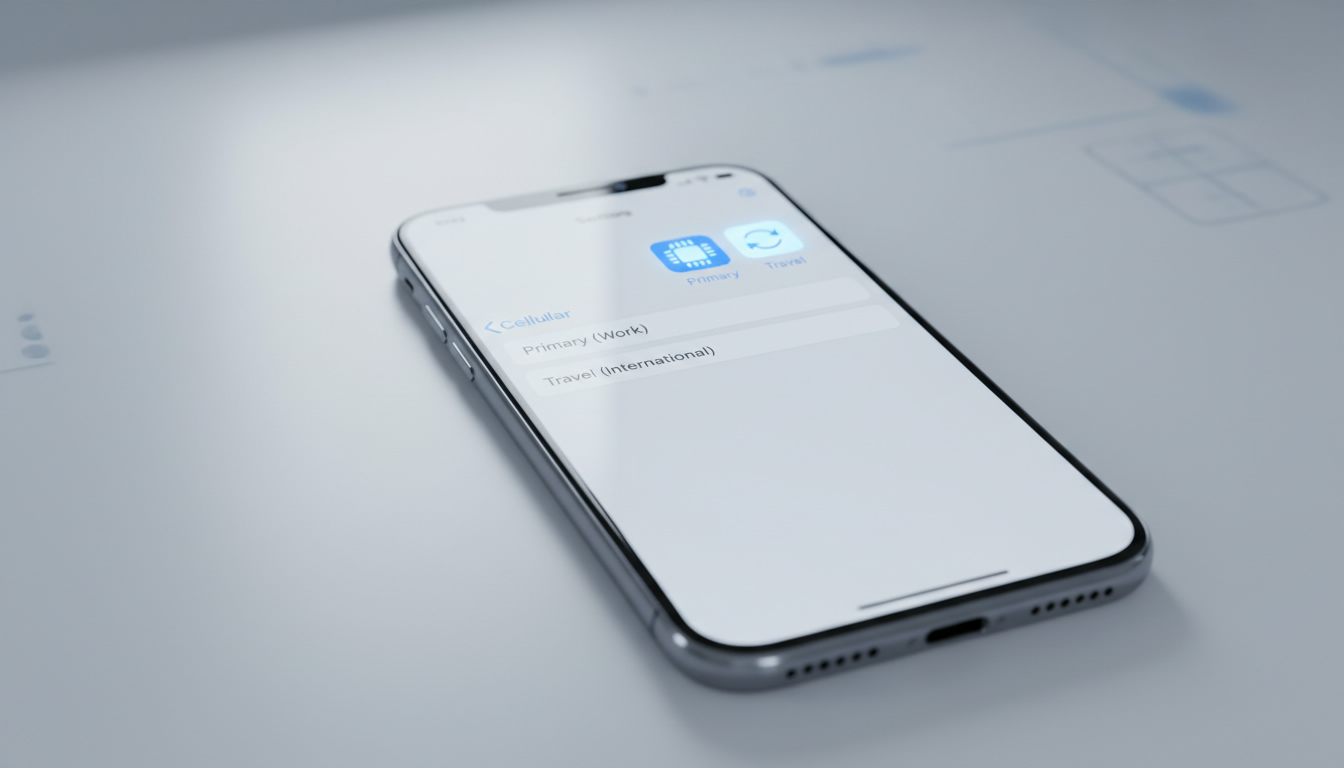
Troubleshooting Activation Issues with Two eSIMs on iPhone
Activating and using two eSIMs simultaneously on an iPhone can simplify managing personal and work lines, but it’s not without its quirks. Since the iPhone 13, Apple has supported dual eSIM functionality, allowing two active eSIMs without a physical SIM card.
However, users often hit snags during setup or daily use that can be frustrating without clear guidance. I always start by understanding the specific iPhone model and iOS version because compatibility and features vary significantly, which directly affects activation success.
Which iPhones Support Two eSIMs Simultaneously?
Not all iPhones can handle two active eSIMs at once. Here’s the breakdown:
| iPhone Model | Dual eSIM Support | Notes |
|---|---|---|
| iPhone SE (3rd generation) | Yes | Supports two active eSIMs |
| iPhone 13 and later | Yes | Can activate two eSIMs simultaneously |
| iPhone 14 (US models) | Yes | No physical SIM slot; dual eSIM only |
| Earlier models (before 13) | No | Only one eSIM plus one physical SIM |
Apple’s official support page confirms that from the iPhone 13 onwards, you can have two active eSIMs at the same time without needing a physical SIM card. This means if you own an iPhone 13 or newer, you can manage two lines purely through eSIM technology.
One field observation I’d share: when trying to activate two eSIMs on an unsupported model (like an iPhone 12 or earlier), the system either won’t allow the second eSIM to activate or will require switching back to a physical SIM. This is because the hardware and firmware don’t support simultaneous dual eSIM profiles.
Common Activation Problems and How to Fix Them
Problem: Unable to Activate Second eSIM
A frequent issue is that the second eSIM refuses to activate or stays in “Pending” status. This usually happens when:
- The carrier’s QR code or activation details are incorrect or expired.
- The iPhone’s software version is outdated.
- The device is locked to a carrier that doesn’t support multiple lines.
How to fix it:
- Update your iPhone to the latest iOS version. Apple often improves eSIM handling in updates.
- Verify carrier support for dual eSIMs. Not all carriers allow multiple active profiles on one device.
- Scan the QR code carefully or enter activation details manually if scanning fails.
- Restart your iPhone after adding the second eSIM profile to refresh network settings.
If you still face issues, resetting network settings can help but beware: this deletes saved Wi-Fi passwords and VPN settings.
Problem: Confusion Between Physical SIM and Dual eSIM Setup
Many users expect to use one physical SIM plus two eSIMs simultaneously, but Apple limits active lines to two at once — either two eSIMs or one physical SIM plus one eSIM.
Field insight: Trying to activate a third line alongside two active ones triggers errors because the baseband firmware only supports two active cellular plans simultaneously.
Problem: Switching Between Two Active Lines Is Not Working Smoothly
Sometimes calls or messages default to one line despite having both active, causing missed communications.
How it works: You must designate a default line for calls, SMS, and data in Settings > Cellular > Default Voice Line. If you want to switch lines for a call, you need to do so manually from the dialer before calling.
A common mistake is expecting automatic switching based on contact or location, which isn’t supported natively yet.
Setting Up Two eSIMs on Your Compatible iPhone
Setting up dual eSIMs involves these steps:
-
Add Your First eSIM Profile:
Use your carrier’s QR code or app to install your first plan under Settings > Cellular > Add Cellular Plan. -
Add Your Second eSIM Profile:
Repeat with your second carrier’s QR code or activation info. -
Label Each Line Clearly:
Assign labels like “Personal” and “Work” so you can easily identify each line in settings and during calls. -
Set Default Lines:
Choose which line is default for voice, SMS, and data usage separately. -
Manage Data Switching:
You can enable “Allow Cellular Data Switching” so your phone uses data from either line depending on availability.
A trap I’d warn about: activating both lines before fully confirming each plan’s activation status can cause conflicts where one line disables unexpectedly. Always wait for confirmation that each profile is fully activated before proceeding with the next.
Managing Two eSIM Plans: Tips for Smooth Operation
Keep Track of Carrier Restrictions
Some carriers limit simultaneous usage of multiple plans on one device or restrict certain features like Wi-Fi calling when using dual SIM mode. Confirm these details with your providers before committing.
Monitor Data Usage Per Line
iOS lets you monitor cellular data usage per plan in Settings > Cellular > Cellular Data Usage. This helps avoid unexpected charges when juggling multiple plans.
Backup Your eSIM Profiles
Unlike physical SIM cards, losing your phone means losing access to your stored eSIM profiles unless you have backups or carrier reactivation options ready. I always advise saving QR codes or activation details securely offline.
Switching Lines During Use
You can switch which line handles calls or data anytime via Control Center by tapping the cellular icon or in Settings under Cellular Plans. However, switching takes a few seconds; impatience may cause call failures.
Understanding Physical SIM vs. Dual eSIM on iPhone
The main difference lies in flexibility and hardware:
- Physical SIM: A plastic card inserted into your phone’s tray; limited slots (usually one or two). Changing carriers requires swapping cards physically.
- eSIM: A programmable embedded chip inside your phone that stores multiple profiles digitally; no physical swapping needed.
Since the iPhone 14 US models dropped physical SIM slots entirely, they rely solely on dual active eSIMs — a major shift toward digital-only cellular management.
A key technical detail is that Apple uses GSMA specification SGP.22 for remote provisioning of eSIM profiles, allowing carriers to push updates over-the-air securely without user intervention beyond initial activation.
Why Two Active eSIMs Matter: Advantages and Use Cases
Having two active lines on one phone offers several benefits:
- Seamless Personal and Work Separation: Manage calls and messages independently without carrying two devices.
- Travel Convenience: Use a local data plan alongside your home number without swapping SIM cards.
- Cost Savings: Choose plans optimized for different needs—cheap data on one line, unlimited calls on another.
- Better Coverage: Switch between carriers depending on signal strength in different locations.
For travelers heading to India, for example, activating an affordable local data plan alongside their home number is straightforward with dual eSIM support — no need for physical SIM swaps at airports or kiosks.
If you want detailed guidance on activating an India-specific plan alongside your existing number, I recommend checking out this step-by-step guide on India eSIM activation.
What Causes Activation Failures? Three Field Observations
-
Carrier Profile Overload -> Device Limits -> Activation Rejection
When attempting to store more than eight total profiles (the maximum Apple allows), new activations fail silently because the device firmware enforces this cap strictly. -
Outdated Carrier Settings -> Incompatible Profile Format -> Activation Stuck
If carrier settings aren’t updated (Settings > General > About), older profile formats may not install correctly, causing indefinite “Pending” status during activation attempts. -
Network Lock -> Unauthorized Profile Installation -> Activation Blocked
An iPhone locked to a specific carrier will reject any attempt to install profiles from other providers until unlocked, preventing dual-line usage across carriers.
Understanding these mechanisms helps avoid wasted time chasing phantom errors during setup.
Switching Between Two Active Lines on Your iPhone
Switching between two active lines involves:
- Selecting which line handles voice calls by default.
- Choosing which line sends SMS/MMS messages.
- Deciding which line uses cellular data at any given time.
- Manually overriding defaults per contact if needed via Contacts app settings.
Keep in mind that simultaneous voice calls on both lines are not supported; if you’re on a call using one line, incoming calls on the other may go straight to voicemail unless you have call forwarding set up externally.
For travelers managing multiple plans remotely, apps from providers like Jio or Airtel often integrate with your phone’s settings for smoother switching and balance monitoring — something I always check when testing new plans at IndiaSim.com.
If you're considering switching carriers while keeping both personal and work numbers active on your iPhone, understanding these activation pitfalls and management tips will save you time and frustration. For more about choosing the best provider for India travel with dual SIM capability, see this detailed review of the best India eSIM options.
FAQ
Which iPhone models support two active eSIMs?
iPhone 13 and later models, including iPhone SE (3rd generation) and US iPhone 14, support two active eSIMs simultaneously. Earlier models only support one eSIM plus a physical SIM, so dual eSIM functionality is limited to newer devices.
Why won’t my second eSIM activate on my iPhone?
Common causes include outdated iOS, incorrect carrier QR codes, or carrier restrictions on multiple lines. Updating your iPhone, verifying carrier support, rescanning activation codes, and restarting the device usually resolve activation issues.
Can I use two eSIMs plus a physical SIM at once?
No, iPhones support only two active cellular plans simultaneously: either two eSIMs or one physical SIM plus one eSIM. Attempting to activate a third line will cause errors due to hardware and firmware limitations.
How do I switch between two active eSIM lines on iPhone?
You can select which line handles calls, messages, and data in Settings under Cellular. Switching lines for calls must be done manually before dialing, and data switching can be enabled for automatic use of the best available line.
What should I do to avoid losing my eSIM profiles?
Since eSIM profiles are stored digitally, back up your activation QR codes or details offline. Losing your phone without backups means you’ll need carrier assistance to reactivate your plans, so keeping secure copies is essential.

Anjali Rao
Anjali is a travel and technology writer who has criss-crossed India by train, plane and rickshaw. At India eSIM she tests travel data plans on Jio, Airtel and Vi and explains how visitors can stay online affordably from Delhi to the backwaters of Kerala.